
Script Data from SSMS: Generate INSERT Scripts with the Wizard

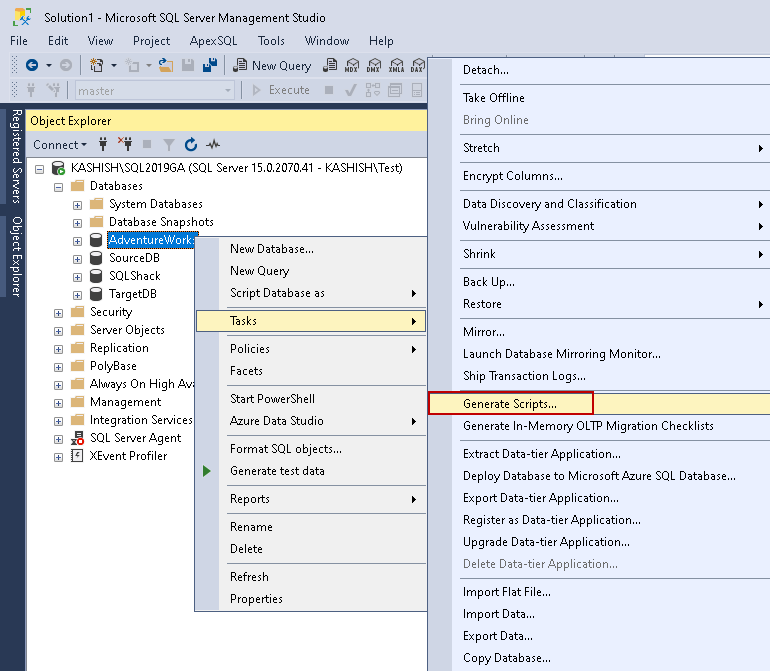
Open SSMS, right-click the database or table, and choose Tasks → Generate Scripts. Select the table, then set Types of data to script to Schema and data in Advanced Scripting Options to emit INSERT statements. Save the .sql file and run it on the destination server. The wizard scripts row by row, so large tables take time.
What “Script Data from SSMS” Actually Does
The Generate and Publish Scripts Wizard produces T-SQL that recreates objects and, when requested, inserts the rows that the objects contain. That removes the need to write INSERT statements by hand when you move a table from one database or instance to another.
Requirements are SQL Server Management Studio 2016 or later; the behaviour described here was tested on SQL Server 2019 CU18. The main limit is that the wizard reads and scripts row by row, not as a bulk copy operation. A very large table can therefore produce a long script and take longer to generate and execute than bcp or an SSIS package would.
How to Script Data from One Table
Follow these steps to generate INSERT scripts for one specific table instead of a whole database:
- In SSMS Object Explorer, right-click the database that contains the table and choose Tasks → Generate Scripts. You can also right-click the table itself.
- On the Choose Objects page, select Select specific database objects, expand Tables, and tick the table you need.
- On the Set Scripting Options page, choose Save to file or Save to new query window, then note the file path if saving to disk.
- Click Advanced. Under Table/View Options, set Types of data to script to
Schema and data. - Review the other advanced options, especially Script indexes, Script triggers, and Script foreign keys, then click OK.
- On the Summary page click Next, then Finish. SSMS writes the script to your chosen output.
- Open the
.sqlfile and confirm that it contains aCREATE TABLEstatement followed byINSERTstatements.
A short sample from a single-table script looks like this:
CREATE TABLE [dbo].[SalesOrder](
    [OrderID] [int] NOT NULL,
    [CustomerName] [nvarchar](100) NULL
);
GO
INSERT [dbo].[SalesOrder] ([OrderID], [CustomerName]) VALUES (1, N'Contoso');
The exact step order follows Microsoft’s SSMS scripting tutorial, which walks through schema and data selection.
Data Only vs Schema Only vs Schema and Data
The option you choose under Types of data to script changes what appears in the .sql file. The exact SSMS menu values are Schema only, Data only, and Schema and data.
| Option | What it generates | When to use | Effect on IDENTITY and dependent objects |
|---|---|---|---|
Data only | INSERT statements only; no CREATE TABLE or supporting objects | Copy rows into a table that already exists on the destination | Inserts the values from the source, including identity columns as present in the source rows; no IDENTITY definition is created |
Schema only | CREATE TABLE statements, columns, data types, and the IDENTITY definition if the source has one; no row data | Create an empty copy of the structure | Includes the destination IDENTITY definition but no rows; foreign keys and triggers are not scripted unless the separate advanced options are set |
Schema and data | Table definition followed by INSERT statements | Move or copy both structure and data in one script | Includes the IDENTITY definition and inserted values; foreign keys, triggers, and indexes still depend on the separate advanced options |
Whichever row you choose, Script foreign keys, Script triggers, and Script indexes are controlled separately from this setting. If they stay at their default values, the generated script may not recreate them even when you select Schema and data.
Set Scripting Options That Change the Output
The Advanced Scripting Options dialog controls the shape of the generated .sql. For most data-copy jobs you should review these four settings:
- Script indexes: often
Falseby default. Set it toTrueto includeCREATE INDEXstatements. Without nonclustered indexes, an insert-heavy destination can suffer from page splits in SQL Server. - Script triggers: often
Falseby default. Set it toTrueif DML triggers must travel with the table. - Script foreign keys: set to
Trueto recreate foreign key constraints on the destination; otherwise the table arrives without them. - Script logins: appears when scripting to a new instance. Set it to
Trueif the destination needs the same logins, otherwise the script contains only database-level objects.
Types of data to script is the critical option for this task: leaving it at Schema only produces no INSERT statements at all.
Verify What the Script Includes—and What It Omits
After generating the .sql, check the file against this list rather than assuming the destination will match the source:
- Count the
INSERTstatements to confirm rows are present. A table with 500 rows should show 500INSERTlines. - Confirm that
CREATE INDEX,FOREIGN KEY, and trigger definitions appear only if you set those advanced options toTrue. - Check the top of the file for
USE [DatabaseName]and adjust it if the destination database has a different name. - Remember that server-level objects are not included. Even when you script a table and its triggers, blocked process event notifications for a blocked process remain a separate server-level object and will not appear in the generated
.sql. - Open the script and look for
SET IDENTITY_INSERT. If it is absent but the destination table already has anIDENTITYcolumn, test the insert path on a disposable copy first.
Run and Import the Generated .sql
- Open the generated
.sqlfile in SSMS or save it to a location thatsqlcmdcan reach. - If the destination database has a different name, change the
USE [DatabaseName]line at the top of the script. - Back up or use an empty destination database before you run a script that inserts rows. Do not truncate an existing table unless you already have a current copy.
- In SSMS press F5, or run the file with
sqlcmd -S server -d DestinationDB -i script.sql. - After execution, check row counts per table with
SELECT COUNT(*) FROM dbo.TableName;and compare them with the source.
The generated script can copy schema and data, but it does not warn you about existing rows. If the target table already has rows, run the script on a test copy first.
Command Line and SMO Alternatives
The wizard has no direct command-line switch for generating scripts with data, but you can execute a generated .sql file with sqlcmd as shown above. For automated scheduling, SMO and PowerShell can reproduce the same advanced options through the ScriptingOptions object. Microsoft Learn documents the Generate and Publish Scripts Wizard options that you would map to SMO properties, but the wizard page does not provide PowerShell examples. Use the wizard first to produce a known-good script, then automate its execution with sqlcmd or an SQL Agent job.
For editorial corrections or missing steps, contact sqlblogcasts.com editors.
FAQ
Can SSMS script data as INSERT statements?
Yes—use Generate Scripts and set Types of data to script to Data only or Schema and data.
How do I script data from one table only?
Choose Select specific database objects, tick the table, then set the advanced option to include data.
Why is my generated script missing indexes or triggers?
Because Script indexes and Script triggers are often false by default; set them to True in Advanced Scripting Options.
What is the difference between Data only and Schema and data?
Data only emits INSERT statements only; Schema and data also creates the table and supporting objects.
Can I script data from the command line?
Not directly from the wizard; automate it with SMO or PowerShell, then execute the generated .sql with sqlcmd.
Fuentes
- Microsoft Learn — Generate and Publish Scripts Wizard
- Microsoft Learn — Script objects in SQL Server Management Studio tutorial
More notes